3.8.5.2 Microsoft integration
Microsoft Integration allows you to integrate your Microsoft 365 contacts within Contact Desktop. Incoming calls from one of your Outlook contacts are displayed with the Microsoft integration in Contact Desktop. You can also find your Outlook contacts in the phonebook in Contact Desktop.
In addition, you can synchronize your presence status with Microsoft Teams. Status changes in Contact Desktop are reflected in Microsoft Teams, and vice versa. See Microsoft Teams Presence Synchronization and Impact of Contact Status on Microsoft Teams Status.

This functionality is only available with the add-on Contact Connect.

If you have already logged in once with your Microsoft 365 account, see Login with Microsoft 365 Credentials, you no longer need to re-authenticate when enabling the Microsoft integration.
To enable Microsoft Integration
To activate the integration with Microsoft, you must log in to the Microsoft portal once.
 The following dialog appears:
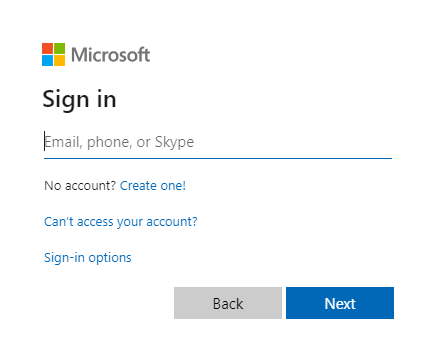 The interface is set up. Your Microsoft contacts are displayed in Contact Desktop.
Microsoft Teams Presence Synchronization
The Microsoft Teams presence synchronization ensures that your current status is consistently aligned between Contact and Microsoft Teams. This includes busy, available, away, and in-call states, and works in both directions so that changes in either application are reflected in the other.
Requirements for presence synchronization
To ensure that presence synchronization between Contact Desktop and Microsoft Teams works correctly, the username must be identical in both systems.
 The username used in Contact Desktop must exactly match the User Principal Name (UPN) of the Microsoft Entra ID account (e. g. firstname.lastname@company.com).Microsoft aliases are not supported, when used no presence synchronization will take place.
To enable Microsoft Teams presence synchronization
You can synchronize your Microsoft Teams presence status with your Contact Desktop presence status.
Your Contact Desktop presence status is synchronized with your Microsoft Teams presence status. If you have already used Contact Desktop with a previous presence integration, you must disable both Microsoft and presence integration in the integration settings and then re-enable them to update your presence in Microsoft.
The following tables describe the synchronization rules. How a status set in Microsoft Teams (manually or automatically) is reflected in Contact, and how an Contact status is reflected in Microsoft Teams.
Impact of Microsoft Teams Status on Contact Status
Teams Status (set by user) | Teams Status (set automatically, based on activity) | Resulting Contact Status |
|---|---|---|
Available | Available | Available |
Available, out of office | Available | |
Busy | Busy | Busy |
in a call | in MS Teams call | |
in a meeting | in calendar meeting | |
in a call, out of office | in MS Teams call | |
Do not disturb | Busy | |
Presenting | in MS Teams call | |
Away | Away | Away |
Away last seen <time> | Away | |
Be right back | Away | |
Appear offline | No synchronization | |
Offline | No synchronization |

Presence synchronization only works if the username in Contact Desktop matches the User Principal Name (UPN) of the Microsoft Entra ID account. Microsoft aliases are not supported. See Requirements for presence synchronization.
For more information on how your Contact status is displayed to users in your organization, see Status Display.
Impact of Contact Status on Microsoft Teams Status
Contact Status (set by the user) | Contact status (set automatically, based on the activity or via REACH) | Resulting Microsoft Teams Status |
|---|---|---|
Available | No synchronization | |
Busy | No synchronization | |
In a call | In a call | |
In Meeting Room | In a call | |
Apperar away | Away | No synchronization |
Appear offline | Offline | No synchronization |
Presence synchronization only works if the username in Contact Desktop matches the User Principal Name (UPN) of the Microsoft Entra ID account. Microsoft aliases are not supported. See Requirements for presence synchronization
For more information on how to override your status in Contact, see 3.3 Presence overwrite.