2.2 Login
Contact Desktop allows you to log in either with credentials provided by your administrator or with your Microsoft account.
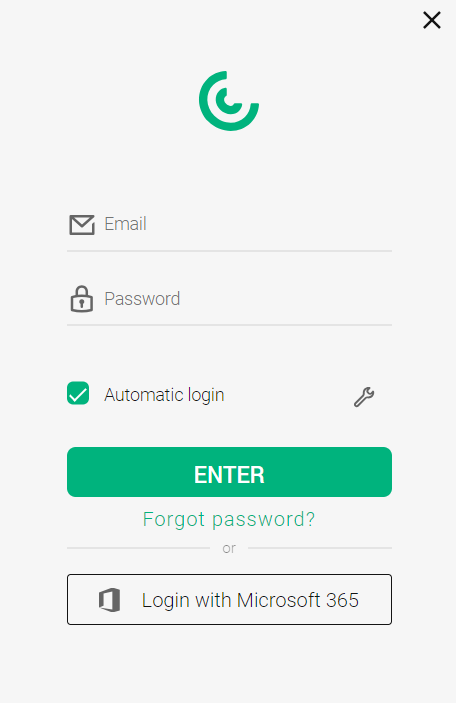
Login with Contact Credentials
To log in to Contact Desktop, you need the login details provided by your administrator.
To log in with your Contact credentials
 You will be logged in to Contact Desktop.
Select the Automatic Login checkbox to automatically log in to Contact Desktop when you start your computer.
Login with Microsoft 365 Credentials
Sign in directly with your Microsoft account for seamless integration with Microsoft services. If you have already logged in once with your Microsoft account, you no longer need to re-authenticate when enabling the Microsoft integration as described in 3.8.5.2 Microsoft integration.
To log in with your Microsoft 365 Credentials
The default browser on your system opens. The following dialogue appears: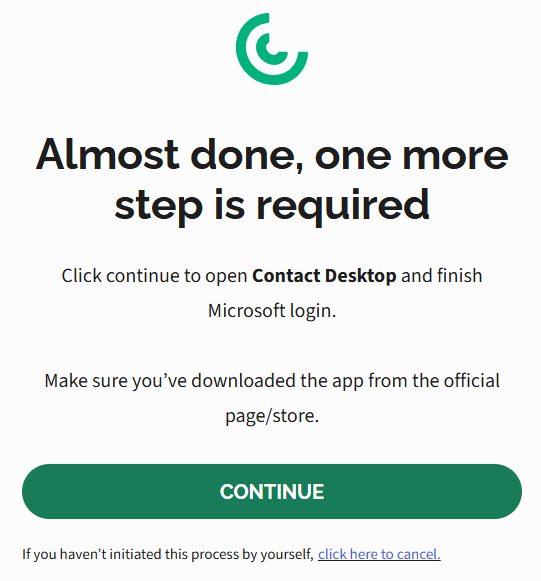 You are being logged in to Contact Desktop.Contact Desktop opens and you are logged in with your Microsoft credentials.
If the message Your authentication has expired appears, you need to re-authenticate with your Microsoft account. Microsoft may ask you to sign in more frequently until the application is recognized as a trusted app.