11 Connection mode
Contact Mobile supports both native mobile phone integration (this must have been ordered for you) and mobile integration via app. Native mobile phone integration allows you to make calls directly via the mobile network without an internet connection. With mobile integration via the app, calls are made directly via the Contact Mobile app.
To avoid the signalling of simultaneous calls on your smartphone via the native mobile phone integration and via the app, we also recommend linking the ordered SIM card to your device. If you do not link your SIM card to your smartphone, calls are signalled both via the native mobile integration and via the Contact Mobile mobile and desktop apps. You therefore receive three call notifications in parallel. If you link your SIM card, you can switch off your mobile device and only receive calls via Contact Mobile Desktop, e.g. when you are in the office.
When linking the SIM card, you can then also choose whether you want to receive calls exclusively via the mobile network or exclusively via the app.
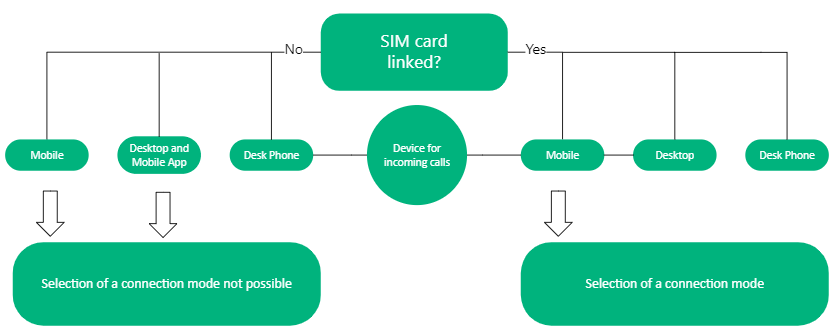
The tables below provide an overview of possible scenarios when selecting the device options and the connection mode.
Follow the steps at Setting the connection mode and Linking the SIM card.

Please note that the SIM card assigned to your Contact Mobile order must be activated on your device.
No SIM card linking
|
Device selection
|
Call behaviour
|
|---|---|
|
Mobile
|
Calls are only signalled via the mobile network.
|
|
Desktop and Mobile App
|
Calls are signalled both on the Contact Mobile mobile app and on the Contact Mobile desktop app.
|
|
Desk Phone
|
Calls are signalled via the desk phone.
|
|
Mobile + Desktop and Mobile App
|
Calls are signalled both via the mobile network and via the Contact Mobile mobile and desktop apps. You receive three call notifications in parallel.
|
|
Mobile + Desktop and Mobile App + Desk Phone
|
Calls are signalled via the mobile network as well as via the Contact Mobile mobile and desktop apps and on the desk phone. This can lead to unforeseen behaviour and is therefore not recommended.
|
SIM card linking
|
Device
|
Connection mode
|
Call behaviour
|
|---|---|---|
|
Mobile
|
App only
|
Calls are only signalled via Contact Mobile Mobile.
|
|
GSM only
|
Calls are only signalled via the mobile network.
|
|
|
App preferred
|
For incoming calls, an attempt is made to deliver the call to the Contact Mobile app for approx. 7 seconds. If you do not have a Wifi connection, the call will be delivered via the mobile network.
The selected connection mode is always used for outgoing calls. If you still want to make a call via the mobile network, long tap on next to the extension number in the contact's profile and select GSM call.
|
|
|
GSM preferred
|
For incoming calls, an attempt is made to deliver the call via the mobile network for approx. 7 seconds. If there is no mobile connection, the call is delivered via the Contact Mobile app.
The selected connection mode is always used for outgoing calls. If you still want to make a call via the app, long tap on next to the extension in the contact's profile and select App call
|
|
|
Desktop
|
Selection of a connection mode not possible
|
Calls are only signalled via Contact Mobile Desktop.
|
|
Desk Phone
|
Selection of a connection mode not possible
|
Calls are only signalled via the desk phone.
|
See also 9.1.3 Switch between app and GSM calls.