4.3 Profile Options
In your profile menu, you can adjust your availability and select which devices you want to use for incoming and outgoing calls.
The available options include:
 Presence – Set your availability (Automatic, Available, Busy, etc.).Devices – Choose which device to use for outgoing and incoming calls (mobile, desktop app, or fixed device).REACH status (override) – Manually override your current status.Language – Change the interface language.
Presence
You can overwrite your presence status. You have the following options:
Away
Busy
Offline
To overwrite your presence status
 Your current presence status is overwritten with the selected status.
Device for outgoing calls
You can set on which device your calls should be carried out. You have the following options:
|
Icon
|
Explanation
|
|---|---|
|
|
If you select this option, calls are made via Contact Mobile.
|
|
|
If you select this option, calls are made via the softphone of the Contact Desktop.
|
|
|
If you have a deskphone installed and linked with Contact Mobile, you can select this option to make calls via your deskphone.
|
To select which device will be used for outgoing calls
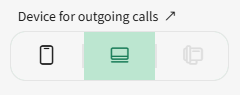
Symbol colour | Explanation |
|---|---|
Green | This device is selected. |
Black | The device is available, but not selected. |
Greyed out | The device is not available |
Device for incoming calls
You can select on which device(s) incoming calls should be signalled.
Icon | Explanation |
|---|---|
Activate this option to have incoming calls signalled on your Contact Mobile application. | |
Activate this option if you want incoming calls to be signalled on the Contact Desktop client. | |
If you have a deskphone installed and linked with Contact Mobile, you can select this option to have incoming calls signalled on your deskphone. |
To select which device will signal incoming calls
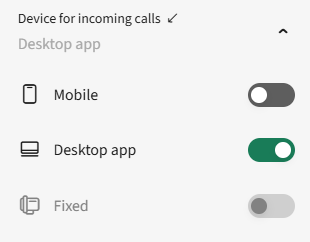
An incoming call can be signalled on several devices.
REACH status override
You can manually override your current REACH status to control how incoming calls are handled, regardless of your calendar or automatic status settings.
To manually change your REACH status
Your current REACH status is overwritten with the selected status.Change language
You can change the language of Contact App for Microsoft Teams.
To change the language of Contact Mobile
The language is changed directly.