4 Chats
To open the chat, click on Chats. In the chat you can send messages and start calls.
All your messages are also available via Enreach Contact Mobile.
Search bar and filter
Use the search and filter options to quickly find specific chats or narrow down the chat list.
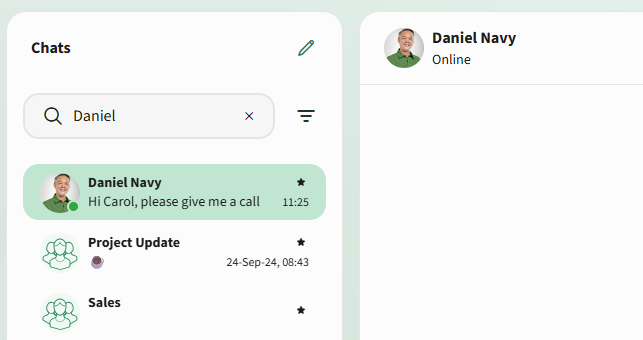
To search for a chat, enter a contact name or number in the search field at the top of the chat list.
The chat list is updated based on the entered search term. If you are part of a group chat with the contact you are searching for, those group chats will also appear in the results.
To filter chats click on . You can filter by the following categories:
 FavoritePersonalGroup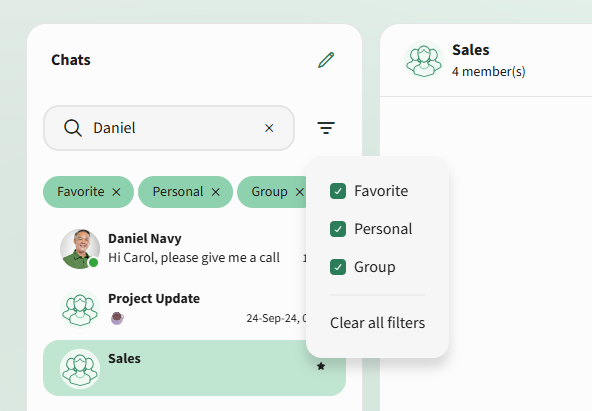
Active filters are displayed as filter chips below the search field. To remove a single filter, select X next to the corresponding filter chip.
Favorite chats, indicated by are displayed at the top. All other chats are listed below by recency.
Single Chats
In a single chat, you exchange messages with one other participant.
You can call the participant directly from the chat, see their presence status and view their profile information and call history.
To start a new chat
 The chat window opens.Your message is sent to the respective contact.
 To start a call from a chat
2 Click on  .
.
.The chat participant is called.To view the profile information and call history
The profile of the chat participants opens.To delete a single chat
The chat and all messages are deleted.Group chats
In a group chat, you can exchange messages with multiple participants. You can view all group participants and see who is currently online.
When you create a group chat, you automatically become the chat administrator. As administrator, you can name and rename the chat, add or remove participants and delete the group chat.
To create a group chat
The group chat is created and the chat window opens. To edit a group chat
The name and members of the group chat are displayed.You can edit the group chat only if you are the administrator of the group chat and have created the group.
You can change the name of the group chat, add and remove members by activating or deactivating the checkboxes.Your settings are saved.To delete a group chat
The name and members of the group chat are displayed.You can delete the group chat only if you are the administrator of the group chat and have created the group.
The group chat is permanently deleted.Chat with Shomi
The Shomi Chat currently offers a basic functionality: it allows you to ask targeted questions about the content of a summary. It can also translate the summary, send it by email, or transfer it to a CRM system to facilitate further processing. For more information on Shomi, see 5 Shomi - Your Personal Assistant.
To chat with Shomi about a summary
1 In the Summary dialogue, click on  to open the chat.
to open the chat.The Personal Assistant opens.Shomi responds. ask for translationShomi translates.send the Summary to your CRM system or E-mail adress
To learn about Shomi
Shomi answers your questions based on the available product documentation.The Shomi Chat feature is currently under active development. Enhancements and improvements may be deployed automatically as they become available.
Further options in single and group chats
You can mute chats by clicking . Muted chats are indicated with in the chat list. Click in the chat to unmute the chat.
To add a chat to your favorites, click . Remove a chat from your favorites by clicking .