3.1.3 Terminating a user extension order
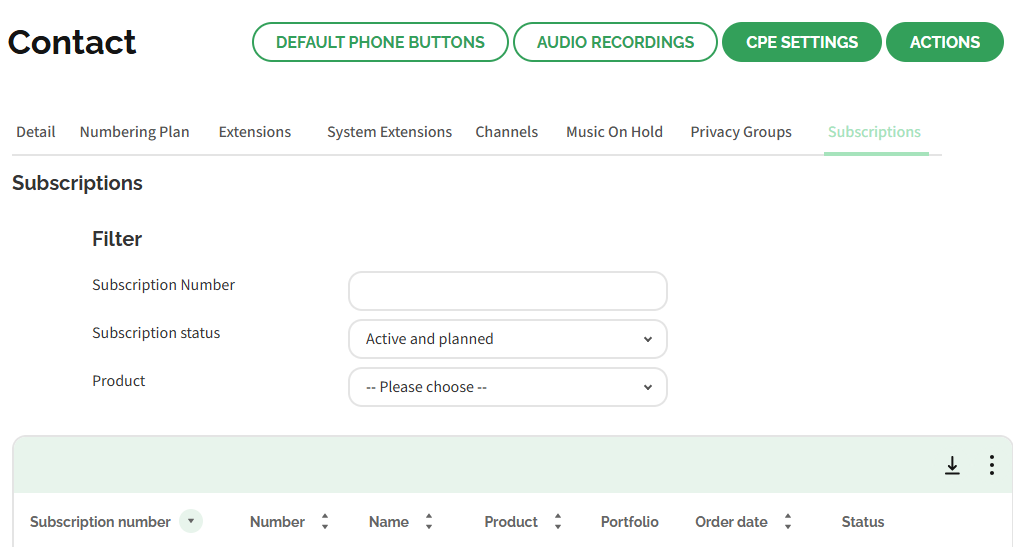
You can terminate existing extensions in the Subscriptions tab in the Contact environment of your customer account in Operator.
The button indicates the subscription is already delivered. When the order is not active yet, you will see the delivery date.
To terminate a user extension order
 The Customer details page appears.The Contact environment appears.The overview of all orders for this customer appears.The order details of the order with different tabs appear.
Label | Explanation |
|---|---|
General | On this tab you can see the technical settings of the order. |
Privacy Settings | On this tab you can see the privacy groups. |
Registered Channels | On this tab the linked SIP channels are displayed. |
Invoicing | This tab displays the activated products and add-ons and the corresponding costs of sales. |
Purchase | This tab shows the activated products and add-ons and the corresponding costs of sales. |
Orders | On this tab you can view the history of this order. |
Usage | This tab shows an insight into the costs incurred by call traffic. |
The Terminate Subscription dialogue appears.Label | Explanation |
|---|---|
End date | Select the date on which this extension should be terminated. Note that this can only be done starting the next day. |
Reference | You can optionally enter your own order reference. |
The extension subscription is terminated.