3.8.5.3 Google Integration
Google Integration allows you to integrate your Google contacts with Contact Desktop. An incoming call from one of your Google contacts is displayed with the contact's name in Contact Desktop using Google integration. All your Google contacts can also be found in Contact Desktop under Phonebook.
To enable Google Integration
To activate the integration with Google, you have to register once at the Google portal.
 The following dialog appears:
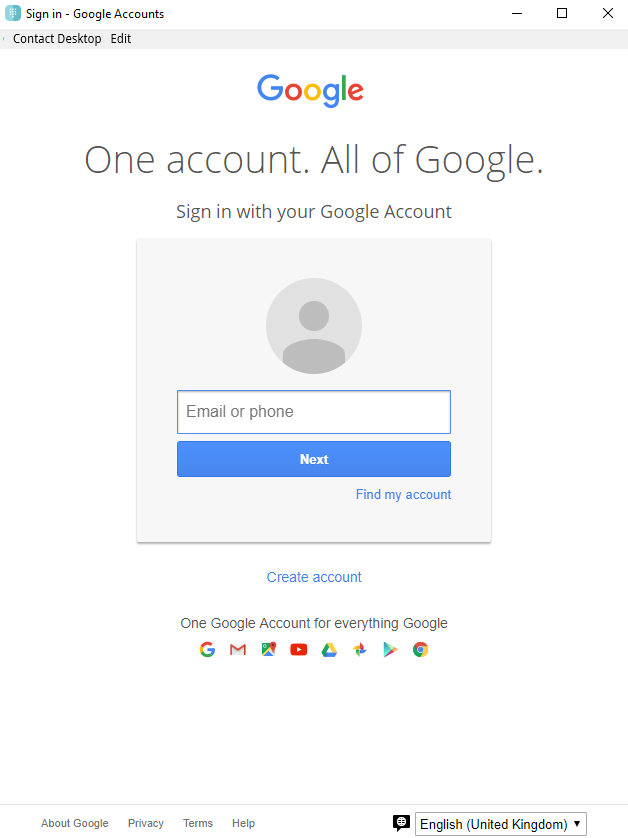 The following dialog appears:
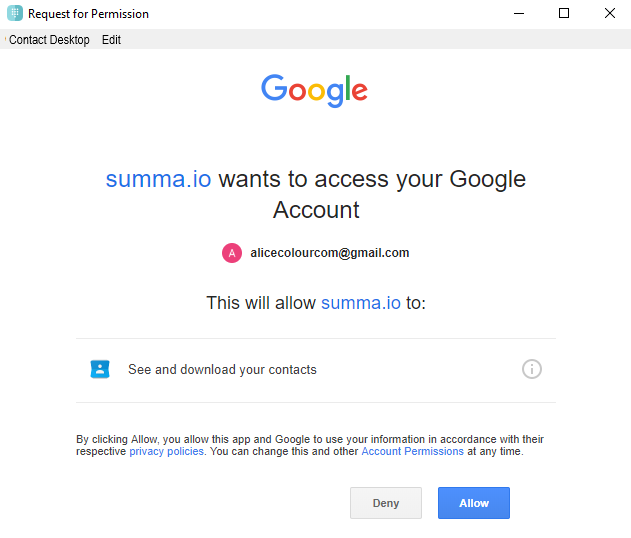 The interface is set up. Your Google contacts are displayed in Contact Desktop.