2.7 Softphone support in a terminal server environment
Contact Desktop can also be used on a terminal server to control a softphone on a users computer.
This local softphone is mainly used for voice output and recording via a handset or a headset.
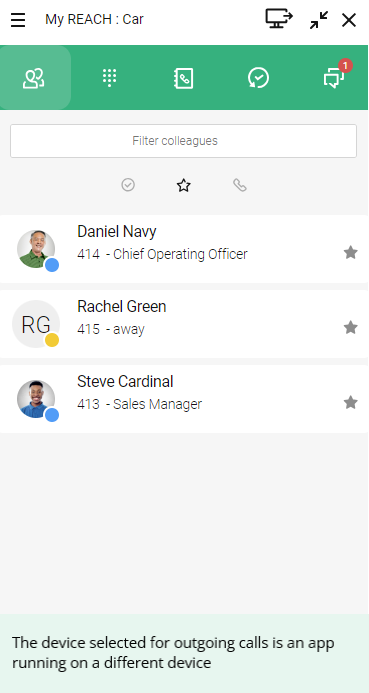
The remote calls via the app on the terminal server are made and received in the exact way as if the calls are made when using Contact Desktop locally. All interactions take place both locally and remotely. The softphone and the locally used audio output devices, such as a headset, are handled by the local Contact Desktop instance.
To enable softphone support in terminal server
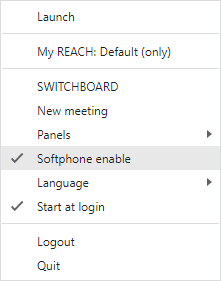

In case your terminal server does not have audio driver, the softphone on your remote Contact Desktop instance is already disabled.
 After every login to the remote Contact Desktop instance or when changing the outgoing device to Softphone, the application will recognize it is running in a remote setup.