5.4 Integrations
Activate or deactivate Contact Connect and sign in with Microsoft 365.
To manage your integration settings
Contact Connect
Contact Connect allows you to integrate Contact App for Web with your Customer Relationship Management (CRM) or Enterprise Resource Package (ERP) or with your contacts database.

To use the Contact Connect integration in the Contact App for Web, you will need the Contact Connect Tool, which can be downloaded from https://desktop.summa.io/, or alternatively, you can use the webconfigurator available at https://contactconnect.summa.io/.
You can use Contact Connect to configure various display settings and up to two action buttons.summa.io
When activated, incoming calls are recognized and if the caller’s phone number exists in your CRM, ERP or contact database, the name and company name and, if applicable other details of the respective contact will be displayed in a notification.
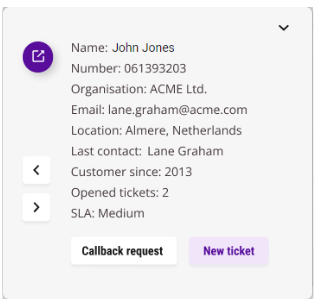
If you have multiple CRM or ERP systems linked to Contact App for Web, click on or to switch between applications.
This functionality is available with the Contact Connect add-on.
Microsoft integration
Microsoft Integration allows you to integrate your Microsoft 365 contacts within Contact App for Web. Incoming calls from one of your Outlook contacts are displayed with the Microsoft integration in Contact App for Web. You can also find your Outlook contacts in the phonebook in Contact App for Web.

If you have already logged in once with your Microsoft 365 account, you no longer need to re-authenticate when enabling the Microsoft integration.
To enable Microsoft Integration
To activate the integration with Microsoft, you must log in to the Microsoft portal once.
 The following dialog appears: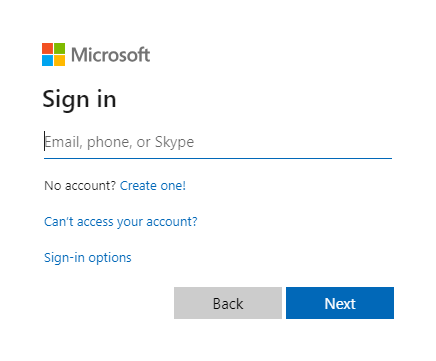
The interface is set up. Your Microsoft contacts are displayed in Contact App for Web.