4.4.2 Record a meeting
With Shomi it is particularly easy to record meetings, summarize them and send meeting minutes.

Ensure that you inform the person you are talking to that the call is being recorded and ask for their consent. For more information on data protection, see 4.5 Data Protection & AI Model Usage. Please also comply with the policies of your company and the data privacy laws of your country.
To let Shomi record a meeting
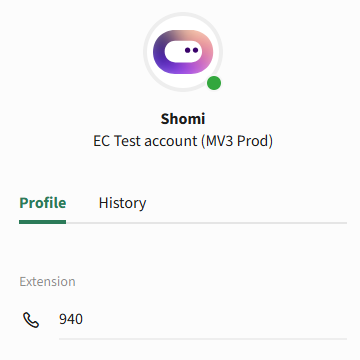
 Shomi starts recording and analysing.
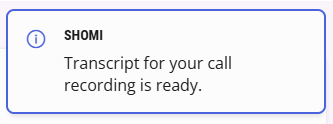 Shomi shows a call summary.
Command | Explanation |
|---|---|
Shomi | You can start a chat with Shomi and ask further questions about the call. |
Translate | Shomi translates the call summary. Choose the language you want the call summary translated to. |
E-Mail | Shomi will send you the call summary via email. |
Push to CRM | Shomi will push the summary to your integrated CRM. |