4.4.1 Call analysis
You are in a phone call. You would like to have the information from the call summarized after the call.

Ensure that you inform the person you are talking to that the call is being recorded and ask for their consent. For more information on data protection, see 4.5 Data Protection & AI Model Usage. Please also comply with the policies of your company and the data privacy laws of your country.
To let Shomi analyse a call
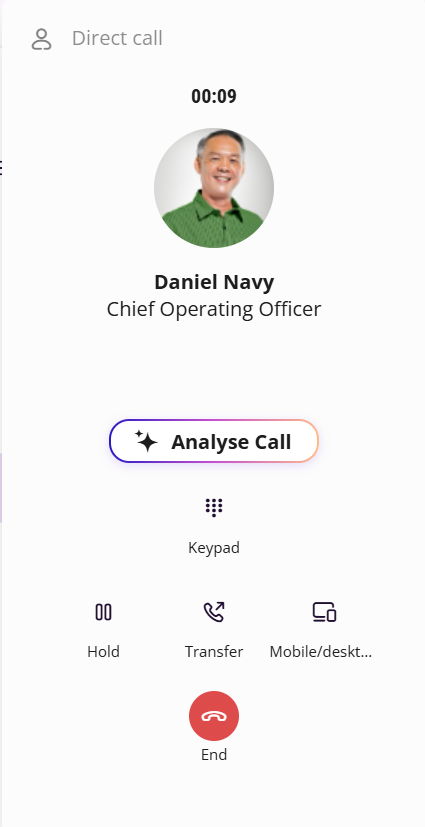
1 Click on  .
.
. Both parties hear the announcement, that the call recording has started. This may vary depending on the settings and country.
2 When you want to pause or stop the call recording, click on  .
.
.Both parties hear a beep, to signal that the call recording has stopped.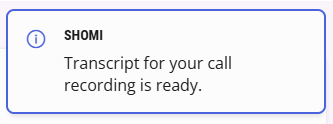 Shomi shows a call summary.
Command | Explanation |
|---|---|
Shomi | You can start a chat with Shomi and ask further questions about the call. See also 4.2 Chat with Shomi. |
Translate | Shomi translates the call summary. Choose the language you want the call summary translated to. |
E-Mail | Shomi will send you the call summary via email. |
Push to CRM | Shomi will push the summary to your integrated CRM. |

The Shomi - Personal Assistant feature is currently under further development. Upcoming improvements may be deployed automatically. Please stay tuned for further enhancements.